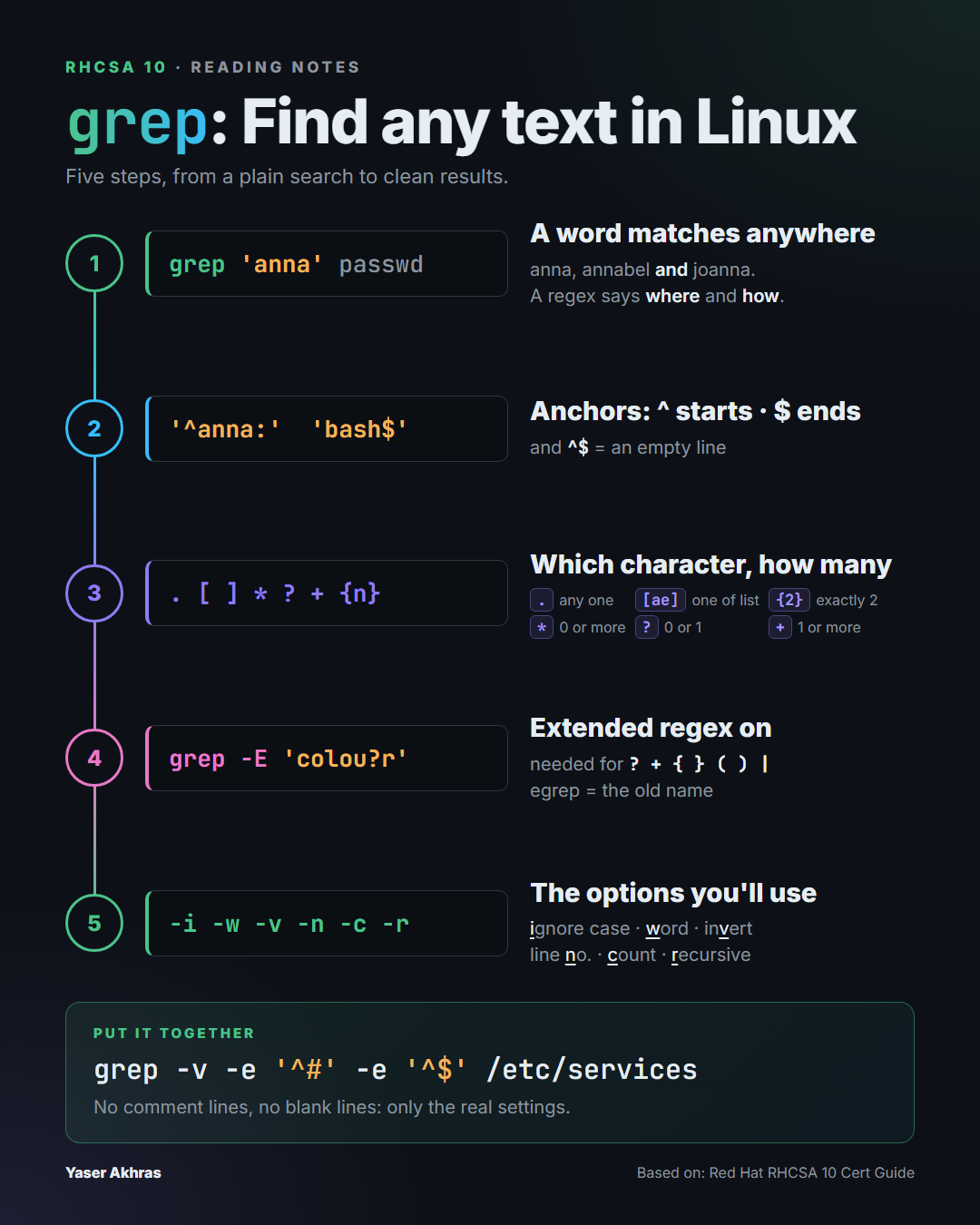
I’m preparing for the RHCSA 10 exam and working through Chapter 4 of the Red Hat RHCSA 10 Cert Guide. This post turns my marked-up pages into a guide I can come back to: five steps, from a plain search to clean results, and every example shows the output it really produces. In a hurry? Jump to the cheat sheet.
What does “grep” mean?
The name comes from a command in ed, one of the first Unix text editors:
g/re/p
- g: global, so do this on every line of the file
- re: a regular expression, the pattern to look for
- p: print the lines that match
So grep = Global Regular Expression Print. That’s exactly what it still does: it reads text line by line and prints every line that matches your pattern. (You’ll also see it expanded as General Regular Expression Parser. That isn’t the original meaning, but it describes the job well.)
The practice files
Paste this once into a terminal. It creates a grep-lab folder with every file the examples use, and moves you into it:
mkdir -p grep-lab/conf/sub && cd grep-lab

cat > passwd <<'EOF'
root:x:0:0:root:/root:/bin/bash
daemon:x:2:2:daemon:/sbin:/sbin/nologin
anna:x:1000:1000::/home/anna:/bin/bash
linda:x:1001:1001::/home/linda:/bin/zsh
annabel:x:1002:1002::/home/annabel:/bin/bash
joanna:x:1003:1003::/home/joanna:/bin/bash
EOF

cat > services <<'EOF'
# /etc/services: network services list
#
# service-name  port/protocol  [aliases ...]

ssh             22/tcp
# 23 is telnet, avoid it
http            80/tcp          www

https           443/tcp
EOF

printf '%s\n' red rad r1d 'r d' r-d rd reed > rd
printf '%s\n' gray grey griy gr8y > gr
printf '%s\n' color colour colouur red reed reeed > words
printf '%s\n' http://a https://b httpss://c > urls
printf '%s\n' web web/ web/index.html website > paths
echo 'port 22' > conf/sub/sshd.conf
echo 'port 80' > conf/web.conf
The two you’ll see most are passwd and services:
passwdis a cut-down copy of/etc/passwd, the file where Linux keeps its user accounts. Each line is one user, with fields separated by colons. The first field is the username and the last is the user’s shell.servicesis a short version of/etc/services, a config file that mixes comments, blank lines and real settings.
The small word lists (rd, gr, words, urls, paths) are for Steps 3 and 4, and the conf folder is for -r in Step 5.
Step 1: What is a regular expression?
grep prints every line that contains what you’re looking for:
$ grep anna passwd
anna:x:1000:1000::/home/anna:/bin/bash
annabel:x:1002:1002::/home/annabel:/bin/bash
joanna:x:1003:1003::/home/joanna:/bin/bash
That’s three results, though we only wanted the user anna. A plain word isn’t precise enough. A regular expression (regex) is a search pattern that describes where and how text should appear, not just what it is.
From here on, every pattern is in single quotes. Symbols like *, ?, [ ] and $ also mean something to the shell, and without quotes the shell can change your pattern before grep ever sees it.
Step 2: Anchors, or where in the line
Anchors don’t match any character. They pin your pattern to a position in the line.
2.1 ^: the line starts with
^annaUse it when you know how a line begins: a username, a keyword, a comment sign.
anna:x:1000…annabel:x:1002…joanna:x:1003…$ grep '^anna' passwd
anna:x:1000:1000::/home/anna:/bin/bash
annabel:x:1002:1002::/home/annabel:/bin/bash
joanna is gone, because “anna” isn’t at the start of its line. annabel is still there, because her line does start with “anna”. To match exactly the user anna, anchor on the colon that ends the username:
$ grep '^anna:' passwd
anna:x:1000:1000::/home/anna:/bin/bash
2.2 $: the line ends with
bash$Use it when you know how a line ends: a shell, a file extension, a closing word.
root…/bin/bashanna…/bin/bashannabel…/bin/bashjoanna…/bin/bashlinda…/bin/zshdaemon…/sbin/nologinWhich users have bash as their shell? The shell is the last field, so anchor to the end:
$ grep 'bash$' passwd
root:x:0:0:root:/root:/bin/bash
anna:x:1000:1000::/home/anna:/bin/bash
annabel:x:1002:1002::/home/annabel:/bin/bash
joanna:x:1003:1003::/home/joanna:/bin/bash
linda uses zsh and daemon uses nologin, so neither appears.
2.3 ^$: an empty line
^$Use it when you want to count or hide the empty lines in a file.
(blank)#ssh…22/tcpThe two anchors with nothing between them:
$ grep -c '^$' services
2
(-c counts the matching lines instead of printing them.) We’ll use this in the final recipe.
Step 3: Wildcards and repetition
These symbols describe which characters can stand in a spot and how many times. Each card below shows what the symbol means, when to reach for it, what it matches (green) and what it doesn’t (red), and the real output. A ␣ in a card stands for a space.
| Symbol | In short | Needs -E? |
|---|---|---|
. | any one character | no |
[ ] | one character from a list | no |
? | maybe there, maybe not | yes |
* | 0 or more of the previous character | no |
.* | anything, or nothing | no |
+ | 1 or more of the previous character | yes |
{n} | exactly n of the previous character | yes (or \{n\}) |
3.1 .: any one character
r.dUse it when you know how long the text is, but not which character is in that spot.
redradr1dr␣dr-drdreed$ grep 'r.d' rd
red
rad
r1d
r d
r-d
rd has nothing between r and d, and reed has two characters there. The dot always means exactly one. For two, write r..d.
3.2 [ ]: one character from your list
gr[ae]yUse it when only certain characters are allowed in that spot.
graygreygriygr8yThe list can be any length: 1, 2, 5 or a whole range. It always fills one position:
| List | Allows | gr…y matches |
|---|---|---|
[a] | only a (same as writing a) | gray |
[ae] | a or e | gray, grey |
[aeiou] | any vowel | gray, grey, griy |
[0-9] | any digit | gr8y |
[^ae] | anything except a or e | griy, gr8y |
$ grep 'gr[aeiou]y' gr
gray
grey
griy

$ grep 'gr[^ae]y' gr
griy
gr8y
Common ranges: [a-z], [A-Z], [0-9], [a-zA-Z0-9].
3.3 ?: maybe there, maybe not
colou?rUse it when you’re not sure whether a character is there, and you want both versions.
colorcolourcolouur$ grep -E 'colou?r' words
color
colour
? allows at most one “u”, so colouur is left out. The same idea finds both kinds of web address, because the “s” is optional:
$ grep -E 'https?://' urls
http://a
https://b
httpss://c has two of them, so it doesn’t match.
3.4 *: zero or more
colou*rUse it when a character may be missing, or repeated any number of times.
colorcolourcolouurcolr$ grep 'colou*r' words
color
colour
colouur
* only repeats the one character before it, here the “u”. colr is missing the second “o” (colou*r needs “colo” first), so it doesn’t match.
3.5 .*: anything, or nothing
^anna.*bash$Use it when the text in between repeats, or simply doesn’t matter to you.
anna:x:1000…/bin/bashannabel:x:1002…/bin/bashlinda…/bin/zshjoanna…/bin/bash$ grep '^anna.*bash$' passwd
anna:x:1000:1000::/home/anna:/bin/bash
annabel:x:1002:1002::/home/annabel:/bin/bash
Read it as: starts with “anna”, whatever, ends with “bash”. linda ends with zsh, and joanna doesn’t start with “anna”.
3.6 +: one or more
colou+rUse it when a character must be there, but it may repeat.
colourcolouurcolor$ grep -E 'colou+r' words
colour
colouur
Like *, but zero isn’t allowed, so color (no “u”) is left out.
3.7 {n}: an exact number of times
re{2}dUse it when you know exactly how many times a character repeats.
reedredreeed| Form | Means | Matches |
|---|---|---|
e{2} | exactly 2 | reed |
e{1,2} | 1 or 2 | red, reed |
e{2,} | 2 or more | reed, reeed |
e{1} | exactly 1: adds nothing, same as plain e | red |
$ grep -E 're{2}d' rd
reed

$ grep 're\{2\}d' rd
reed
Without -E, the braces need backslashes (\{2\}), which is how the book writes it. Both commands above do the same thing.
Most of these cards say needs grep -E. That’s the next step.
Step 4: Basic vs. extended regex (grep -E)
Linux has two sets of regular expressions:
- Basic regex, which plain
grepunderstands:^ $ . * [ ] - Extended regex, which adds
? + { } ( ) |
Plain grep treats extended symbols as ordinary characters. This caught me out:
$ printf 'reed\nre{2}d\n' | grep 're{2}d'
re{2}d
Without -E, grep looked for the literal text re{2}d. With -E it understands the pattern and finds reed.
grep -E vs. egrep: you’ll see both in older guides. grep -E is the modern way. egrep is the old way, and behind the scenes it’s just a two-line script that runs grep -E. Newer grep versions print a warning that it’s obsolescent, so stick with grep -E.
4.1 Reading a real pattern: web(/.*)?
This pattern comes from SELinux file-context rules. Read it from left to right:
web: the literal text “web”(/.*): a group, made of a slash followed by.*, which means “anything, any length”?: that whole group may appear 0 or 1 time
So it matches the directory itself, the directory with a trailing slash, and anything inside it:
$ grep -E '^web(/.*)?$' paths
web
web/
web/index.html
website doesn’t match. After “web” comes “s”, not a slash and not the end of the line.
Step 5: The options you’ll use every day
The letter of each option comes from the bold part of its description, which makes them easier to remember. They’re grouped by what they change.
5.1 What counts as a match
| Option | What it does | Example → result |
|---|---|---|
-i | ignore upper/lower case | grep -i ROOT passwd → the root line |
-w | match whole words only | grep -w anna passwd → only anna, not annabel or joanna |
-v | invert: lines that do not match | grep -v nologin passwd → 5 users, everyone except daemon |
-E | Extended regex | grep -E 'colou?r' words → color, colour |
-e | add another expression | grep -e '^ssh' -e '^http' services → the ssh, http, https lines |
$ grep -i ROOT passwd
root:x:0:0:root:/root:/bin/bash

$ grep -v nologin passwd
root:x:0:0:root:/root:/bin/bash
anna:x:1000:1000::/home/anna:/bin/bash
linda:x:1001:1001::/home/linda:/bin/zsh
annabel:x:1002:1002::/home/annabel:/bin/bash
joanna:x:1003:1003::/home/joanna:/bin/bash
grep -v nologin is a quick way to list the accounts that can actually log in.
5.2 What gets printed
| Option | What it does | Example → result |
|---|---|---|
-n | add line numbers | grep -n anna passwd → 3:anna…, 5:annabel…, 6:joanna… |
-c | count matching lines | grep -c 'bash$' passwd → 4 |
-o | only the matching part | grep -o 'bash$' passwd → bash, 4 times |
-l | list file names only | grep -rl port . → ./sub/sshd.conf, ./web.conf |
-h | hide file names | grep -rh port . → port 22, port 80 |
$ grep -n anna passwd
3:anna:x:1000:1000::/home/anna:/bin/bash
5:annabel:x:1002:1002::/home/annabel:/bin/bash
6:joanna:x:1003:1003::/home/joanna:/bin/bash
5.3 Where to search
| Option | What it does | Example → result |
|---|---|---|
-r | recursive: a folder and everything below it | grep -r port . → sub/sshd.conf:port 22, web.conf:port 80 |
-I | skip binary files | grep -rI word . → no “Binary file … matches” lines |
5.4 Lines around a match
| Option | What it does | Example → result |
|---|---|---|
-A n | n lines After | grep -A1 '^ssh' services → the ssh line + the comment under it |
-B n | n lines Before | grep -B1 '^https' services → the blank line above + https |
$ grep -A1 '^ssh' services
ssh             22/tcp
# 23 is telnet, avoid it
5.5 -r without a directory
If you give -r a pattern but no directory, grep searches the directory you’re currently in (and everything below it). The conf folder from the setup holds web.conf and sub/sshd.conf:
$ cd conf
$ grep -r port
sub/sshd.conf:port 22
web.conf:port 80
That’s the same as grep -r port ., where . means “the current directory”. Add -n to see line numbers as well:
$ grep -rn port .
./sub/sshd.conf:1:port 22
./web.conf:1:port 80
Putting it together: read a config file without the noise
Config files on Linux are mostly comments. To see only the settings, start by hiding the comment lines with -v '^#' (back in grep-lab):
$ grep -v '^#' services

ssh             22/tcp
http            80/tcp          www

https           443/tcp
That’s better, but blank lines are left behind. Add a second pattern with -e to hide those as well:
$ grep -v -e '^#' -e '^$' services
ssh             22/tcp
http            80/tcp          www
https           443/tcp
Only the real settings are left. On a real system this works the same way with /etc/services, /etc/ssh/sshd_config or almost any other config file.
Real-life examples: searching source code
These come from my day job: searching Odoo source code, both a module of mine and Odoo’s own web client. The output is real, cut short with … where it was long.
Find any of several words: \|
Odoo renamed the field groups_id to group_ids, so when moving a module between versions I look for both names at once:
$ grep -rn "group_ids\|groups_id"
tests/test_sync.py:161:        self.assertEqual(menu.group_ids, self.env.ref('base.group_system'))
\|means OR: matchgroup_idsorgroups_id. It’s two symbols: the bar|is the OR, and the backslash\in front of it is there because we didn’t use-E. Plain grep uses basic regex, where a bare|is just an ordinary character, so the backslash is what turns it into OR. With-Eyou write the bar alone,|(see the next example).- It isn’t limited to two words. Add one
\|per extra word:grep -rn "one\|two\|three"finds lines with any of the three. -rn: search every file in the current folder, and show line numbers so you can jump straight there.
The same in one file:
$ grep -n 't-ref\|canvas' views/graph/graph_renderer.xml
33:        <div t-att-class="'o_graph_renderer o_renderer h-100 d-flex flex-column border-top ' + props.class"…
37:            <div t-if="model.hasData()" class="o_graph_canvas_container flex-grow-1 position-relative px-3 …
38:                <canvas t-ref="canvas" />
Tip: if you catch yourself writing 'Ref\|ref', use -i ref instead. It ignores upper and lower case for you.
The same with -E, over many files
$ grep -nE 'record id=|<menuitem' views/*.xml data/*.xml
views/goatcounter_views.xml:4:    <record id="goatcounter_total_view_list" model="ir.ui.view">
views/goatcounter_views.xml:15:    <record id="goatcounter_total_view_graph" model="ir.ui.view">
…
views/menus.xml:8:    <menuitem id="menu_goatcounter_root" name="Website Stats" sequence="90" …
views/menus.xml:10:    <menuitem id="menu_goatcounter_dashboard" name="Dashboard" parent="menu_goatcounter_root"
…
data/ir_cron.xml:3:    <record id="ir_cron_goatcounter_sync" model="ir.cron">
- With
-E, a plain|means OR, no backslash needed. views/*.xml data/*.xml:*means any file name, soviews/*.xmlis every file ending in.xmlinside theviewsfolder, whatever it’s called (menus.xml,goatcounter_views.xml, …). The shell (not grep) turns each*into that list of files, so grep searches all of them. Every line starts with its file name. (32 lines in total.)
Group the part that changes: ( )
$ grep -nE 'name="(journey|country_id|pageview_ids)"' views/goatcounter_visit_views.xml
9:                <field name="country_id"/>
17:                <field name="journey"/>
30:                            <field name="country_id" readonly="1" placeholder="Unknown country"/>
50:                    <field name="pageview_ids" readonly="1">
69:                <field name="country_id"/>
70:                <field name="pageview_ids" string="Page or click" filter_domain="[('pageview_ids.path', 'ilike', self)]"/>
Read it as: name=", then one of the three names, then ". The brackets hold only the part that changes, so you don’t have to write name="…" three times. The quotes on both sides also make it exact: name="journey_count" wouldn’t match. With only one file, grep doesn’t print the file name.
Find where a function is defined, and why .* can trick you
$ grep -rn 'export.*useRef' .
./src/core/utils/hooks.js:266:export function useRefListener(ref, ...listener) {
./src/views/view_dialogs/export_data_dialog.js:100:        this.exportListRef = useRef("exportList");
./lib/owl/owl.js:6373:    exports.useRef = useRef;
./lib/hoot/tests/hoot-owl-module.js:32:export const useRef = _owl.useRef;
Four lines, but none of them is the definition of useRef. .* accepts anything in between, so this.exportListRef = useRef( matches too: “export” sits inside exportListRef, and “useRef” comes later on the line. The loose part matched far more than I meant.
Be precise instead. -w matches whole words only, so useRefListener no longer counts:
$ grep -rnw 'function useRef' .
./lib/owl/owl.js:6216:    function useRef(name) {
One line, the real definition. When .* gives you noise, replace it with the exact text you expect.
Print only the matching part: -o and -h
$ grep -rhoE 't-(esc|out|if|foreach)="[a-zA-Z_.]+' web/static/src/views | head -5
t-out="noContentHelp
t-if="title
t-esc="title
t-if="description
t-esc="description
-o: print only the part that matched, not the whole line.-h: hide the file names.t-(esc|out|if|foreach)=": one of the four commands, then=".[a-zA-Z_.]+: one or more letters, underscores or dots, so the name after it (props.string,title). It stops at the first other character, like(or a space.| head -5: show only the first 5 lines. There were 615.
Now the real use: count them. sort puts equal lines together, uniq -c counts each one, and sort -rn puts the biggest number first:
$ grep -rhoE 't-(esc|out|if|foreach)="[a-zA-Z_.]+' web/static/src/views | sort | uniq -c | sort -rn | head -3
     26 t-if="props.readonly
     16 t-if="props.record.data
     13 t-esc="formattedValue
Cheat sheet
| Goal | Command |
|---|---|
| Lines starting with X | grep '^X' file |
| Lines ending with X | grep 'X$' file |
| Count blank lines | grep -c '^$' file |
| Optional character | grep -E 'colou?r' file |
| Case-insensitive | grep -i word file |
| Whole word only | grep -w word file |
| Everything except X | grep -v X file |
| Only the matching part | grep -o 'pattern' file |
| A match plus the line after it | grep -A1 word file |
| Search a whole directory | grep -r word /etc |
| Config without comments and blanks | grep -v -e '^#' -e '^$' file |
| Either of two words, whole project | grep -rnIE 'old_name|new_name' . |
| One of several names in the same spot | grep -nE 'name="(a|b|c)"' file |
| Count every different match | grep -rhoE 'pattern' . | sort | uniq -c | sort -rn |
Based on: Red Hat RHCSA 10 Cert Guide, Chapter 4. Explanations and examples are my own, and every command was run on GNU grep with the output shown above.